February 2nd, 2012 / No Comments » / by admin
In the first post of this two part series I outlined some of the deficiencies related to SSRS reports execution through a stored procedure, where multivalued parameters needed to be used in a report. In this post I would like to show how you can execute a report with multivalued parameters by simply typing in individual values, separated by commas into a parameter textbox. This is just an alternative method of filtering the report content. Why would this method be any more useful than allowing checkboxes to appear next to each value in the parameter? Well, imagine that you have hundreds of values to filter by therefore hundreds of checkboxes to tick. Scanning through all the values to select only the ones applicable to what we want to filter by would be very time-consuming and frustrating. Additionally, this method can be used as a search interface for values which we are not completely certain about. All we need to do is to list them one by one and if the data related to the value is found in the source then it will be displayed in the report output, otherwise it will not come up after the report generation.
To demonstrate it hands-on, let’s create a simple dataset and populate it with some dummy data using the below script.
CREATE TABLE [dbo].[Table_1]
(
	[Item_SKU] [int] NULL,
	[Item_Category] [varchar](50) NULL,
	[Item_Price] [money] NULL,
	[Item_Price_Bracket] varchar (50)
)
ON [PRIMARY]

GO

DECLARE @Item_SKU int
SET @Item_SKU = 1
WHILE @Item_SKU <1001
	BEGIN
		INSERT INTO Table_1
			(Item_SKU, Item_Category, Item_Price, Item_Price_Bracket)
			VALUES
			(@Item_SKU, CASE WHEN @Item_SKU<100 THEN 'Category A'
							 WHEN @Item_SKU>=100 AND @Item_SKU<200 THEN 'Category B'
							 WHEN @Item_SKU>=200 AND @Item_SKU<300 THEN 'Category C'
							 WHEN @Item_SKU>=300 AND @Item_SKU<400 THEN 'Category D'
							 WHEN @Item_SKU>=400 AND @Item_SKU<500 THEN 'Category E'
							 WHEN @Item_SKU>=500 AND @Item_SKU<600 THEN 'Category F'
							 WHEN @Item_SKU>=600 AND @Item_SKU<700 THEN 'Category G'
							 WHEN @Item_SKU>=700 AND @Item_SKU<800 THEN 'Category H'
							 WHEN @Item_SKU>=800 AND @Item_SKU<900 THEN 'Category I'
							 ELSE 'Category J' END,
			@Item_SKU + 0.99, NULL
			)
	SET @Item_SKU = @Item_SKU + 1
END

GO

UPDATE Table_1
SET  Item_Price_Bracket = CASE WHEN Table_1.Item_Price < 500 THEN 'Price Bracket 1'
						  ELSE 'Price Bracket 2' END
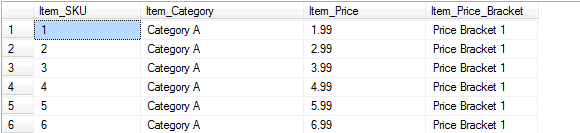
When finished, the output should look like the table below (partial view only).
Now, let’s say I want a simple report that in a table format will display all the data contained in the table we have just created but filtered by only certain Item_SKU numbers. Instead of creating a multivalued parameter which will contain no fewer than 1000 rows, we can input multiple ‘Item_SKU’ numbers separated by commas. The only deficiency to this method is that the user will need to know the values for this parameter, rather than relying on the system to generate the filter list. In order to achieve this through stored procedure we can create a temp table within a SP and pass the parameter values from the report into the SP statement as per below.
SET ANSI_NULLS ON
GO
SET QUOTED_IDENTIFIER ON
GO

CREATE   PROCEDURE [dbo].[SP_Select_data_from_Table1]
(
--This variable will hold all our Item_SKUs
@Item_SKU varchar(100)
)

AS
--DROP (if exists) AND CREATE TEMP TABLE TO HOLD SKUs SELECTED BY THE USER
IF  EXISTS (SELECT * FROM sys.objects WHERE object_id = OBJECT_ID(N'#Temp_SKUs'))
DROP TABLE #Temp_SKUs
CREATE TABLE #Temp_SKUs (SKUs varchar(100))

--DECLARE SQL STATEMENT AND INSERT SKUs
DECLARE @SQL as varchar (1000)
SET @SQL = 'INSERT INTO #Temp_SKUs (SKUs) Select Item_SKU from Table_1 WHERE Item_SKU IN'
SET @SQL = @SQL + '(' + @Item_SKU + ')'
EXEC ( @SQL )

SELECT * FROM Table_1 WHERE Item_SKU IN (SELECT * FROM #Temp_SKUs)
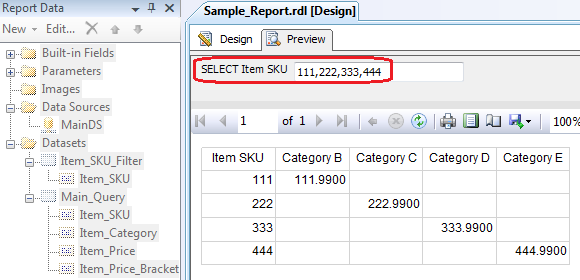
This piece of SQL is pretty much self-explanatory – we pass the multiple values that the user want to filter by into a temp table created on the fly and then use them in the final ‘SELECT’ statement to get the ‘Table_1’ table data ‘WHERE’ values are in the previously created temp tables which again links to the SSRS parameters. Clean and easy! The report output is as per the image below where the values, separated by commas, are typed into the blank text box and then the report content filtered as per those.
Please also visit the first part to this post which can be found HERE.
Posted in: How To's, SQL, SSRS
Tags: Code, SQL, SSRS
February 1st, 2012 / No Comments » / by admin
Recently, I have been racking my brains over a little SSRS inefficiency which hasn’t become apparent until I tried to use RANK() SQL function in one of the queries. As it turns out Query Designer in Report Designer does not play well with what is easily achievable in Management Studio (or other SQL editor for that matter) and common function expressions, for example RANK(), are still not supported. It is fairly well documented issue with SSRS (I’m running version 10.5 on SQL Server 2008 R2) and in most circumstances it can be rectified by building a custom view or running a query from a stored procedure (which should also positively impact execution performance). The problem with using stored procedure is that when we want to narrow the output scope by means of using selectable parameters with multivalued option (i.e. In(@Parameter) rather than =(@Parameter)), it is impossible to pass this this multivalued parameter through the very SP. This can be achieved by using a function within the SP to fetch parameter values from a table, rather than a string and passing the result into the SP for further crunching. This process seems to be more complex than it should be (why not just allow RANK() function in Report Designer!) so let me start from the beginning.
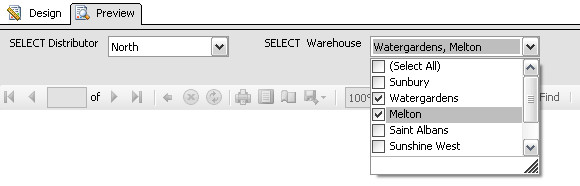
Let’s say we would like to build a report which will display top five best-selling products in their categories for a given distributor and its corresponding warehouse by calendar month. In the report itself, you would like to make the distributor the first parameter the user will need to select and the warehouse a cascading parameter which stems from the distributor parameter and is marked as multivalued (see below).
To display the results we should be able to run this simple SQL code with RANK() function to pull out top 5 products which sell best.
-------------------------------------------------------------------------------------
--                                     QUERY NO 1                                  --
-------------------------------------------------------------------------------------
SELECT * FROM
(
    SELECT COUNT(Sale_ID) as Number_of_Sales, Calendar_Month_Report_Date,
    Product_Category, Distributor, Warehouse,
    RANK() OVER (Partition By Distributor ORDER BY COUNT(Sale_ID) DESC) as Rank_Column
    FROM Sales
    WHERE (Distributor = @Distributor)
    AND (Warehouse = IN(@Warehouse))
    AND (Calendar_Month_Report_Date = @Month)
    GROUP BY Calendar_Month_Report_Date, Product_Category, Distributor, Warehouse
) as a
WHERE Rank_Column ORDER BY Number_of_Sales

GO
To turn it into a SP we prefix the above with the following:
--------------------------------------------------------------------------------------
--                                       QUERY NO 2                                 --
--------------------------------------------------------------------------------------

CREATE PROCEDURE [dbo].[sp_GetTop5SalesCategories]
    @Distributor varchar (30),
    @Warehouse varchar (25),
    @Month datetime
AS
Mind that the parameters have already been defined in the report and assigned to their respective datasets. The problem with the above two solutions is that in the first query the RANK() function is not supported in Report Designer and the second code sample works only with single-valued parameters. As our report has a “allow multiple values” enabled on @Warehouse parameter the SP will throw an error unless we “feed” it with a nifty function which converts comma-delimited strings into a table.
--------------------------------------------------------------------------------------
--                      CREATE FUNCTION dbo.fn_String_To_Table                      --
--------------------------------------------------------------------------------------

CREATE FUNCTION [dbo].[fn_String_To_Table] (
     @String VARCHAR(max),         /* input string */
     @Delimeter char(1),           /* delimiter */
     @TrimSpace bit )              /* kill whitespace? */
RETURNS @Table TABLE ( [Val] VARCHAR(4000) )
AS
     BEGIN
              DECLARE @Val VARCHAR(4000)
              WHILE LEN(@String) > 0
              BEGIN
                   SET @Val = LEFT(@String,
                       ISNULL(NULLIF(CHARINDEX(@Delimeter, @String) - 1, -1),
                       LEN(@String)))
                   SET @String = SUBSTRING(@String,
                       ISNULL(NULLIF(CHARINDEX(@Delimeter, @String), 0),
                       LEN(@String)) + 1, LEN(@String))
              IF @TrimSpace = 1 Set @Val = LTRIM(RTRIM(@Val))
              INSERT INTO @Table ( [Val] )
              VALUES ( @Val )
    END
RETURN
END
The beauty about this function is that it will happily take our multi-valued parameter and return a table which can be queried using “IN” statement. It also takes a “delimiter type” and “trim white spaces YES or NO” inputs, but its core functionality comes from the table output it provides for convenient query execution against its content. Once we replace the highlighted code row from Query No 1 (row 11) with a modified version which calls the function, as per the image below we should be able to execute the stored procedure and run the report as expected, regardless of whether a single or multiple values are selected from @Warehouse parameter.
---------------------------------------------------------------------------------------
--                              REPLACEMENT CODE                                     --
---------------------------------------------------------------------------------------
AND (Warehouse = IN(SELECT val FROM dbo.fn_String_to_Table (@Warehouse,',',1)))
--
Please also visit the second part to this post which can be found HERE.
Posted in: How To's, SQL, SSRS
Tags: Code, SQL, SSRS



Great post Martin and I found that the source code worked well. My company was about procure and deploy an…